
Settings
Open full settings from the gear in the extension menu. Search for a setting when you can’t find it, such as language, shortcuts, or menu layout. Changes normally save automatically.
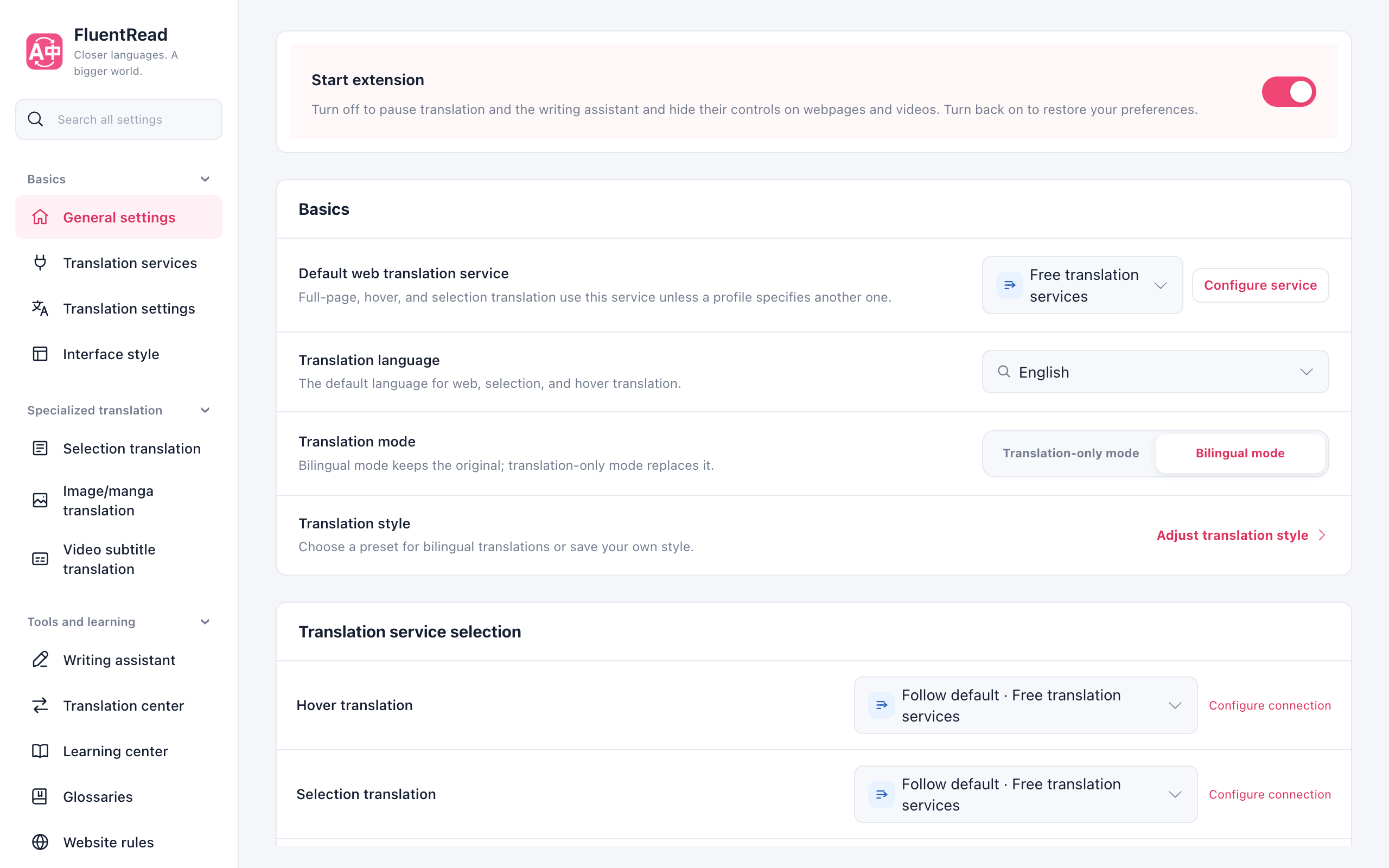
Start with these
| Setting | When to change it |
|---|---|
| Target language | You want to read another language |
| Translation service | The free service is busy, or you have a preferred provider |
| Translation style and colors | You want the original and translation easier to tell apart, or translation colors that suit the page |
| Hover and selection triggers | You want quicker access or fewer accidental popups |
| Automatic translation and site rules | Some sites should always translate; others should stay as they are |
Languages to skip
Languages to skip
Open Translation settings → Languages to skip and select one or more languages. Click a selected language again to remove it. Simplified and Traditional Chinese are separate choices: select Traditional Chinese to keep that text unchanged instead of converting it to Simplified Chinese.
Common languages appear first. Expand “More languages” for the full list; selected languages stay visible when collapsed. “Clear selection” restores the default with no additional exclusions. Changes save automatically and apply to the next translation session. Restore an active full-page translation before starting again.
The setting applies to automatic and manual full-page translation, hover translation and page titles. It checks individual text rather than excluding an entire multilingual page. Other languages remain translatable; short or uncertain text may still be translated. Selection, input, document, image and subtitle translation keep their existing behavior.
Appearance and menu layout
Appearance and menu layout
The first section of Interface style is Translation style: pick how bilingual translations look, customize text and independent background colors and exact font size, or enter CSS declarations and preview and save your own style. Then choose a light or dark theme and an interface style. Press Tab to focus the selected style, use arrow keys to change it, or Home and End to select the first and last styles. Your selection saves automatically; press Tab again to leave the group. In menu layout, drag sections or shortcut cards in the preview, hide unused entries, and add them back later. The list also offers ordering controls.
The menu shows the default translation service and its configured model. Select the service summary to inspect and change assignments for individual features. Configuration reminders keep a direct settings action.
Hiding an entry only changes the menu. Turn off the corresponding feature in its own settings if you want to disable it.
Different tools, different services
Different tools, different services
Webpages, documents, subtitles, and the reading card can use different services. If a result is unexpected, check the service and model for that particular feature. See Translation services.
Sites and shortcuts
- Website reading area: missing content, automatic translation, and exclusions.
- Shortcuts & triggers: page, hover, selection, and area controls.
- Glossaries: preferred terms for AI translation.
Backups, cache, and usage
Backups, cache, and usage
Before changing browsers or uninstalling, save the configuration and learning data you want through backup and restore. Backups may contain credentials and saved text.
Translation cache settings let you view and clear recent results. Clearing that cache does not delete learning collections. See Translation statistics for request size, duration, and service performance, and AI usage for token use.
Reading aids
Enable bilingual sentence highlighting under Translation → Reading aids, then adjust its appearance under Interface style → Translation style. See appearance and reading aids.
Request limits
Request limits
If a provider reports too many requests, or your API has a quota, adjust concurrency and request rates under Advanced settings → Request limits.
Concurrency counts translation tasks. A task that combines multiple texts still uses the provider's own batch scheduling internally. Its slot remains occupied until the associated network requests and response bodies have finished. Tasks that are still finishing after cancellation or timeout continue to count. Changing the limit mode or scope also counts existing tasks toward the new limit; new tasks wait while the active count meets or exceeds it.
| Limit | Default |
|---|---|
| Concurrent translation requests | 10 |
| Requests per second | 10 |
| Requests per minute | 250 |
Set a per-second or per-minute limit to 0 to remove that limit. Requests wait in a queue when a limit is reached. Existing custom values are preserved.
- Per model: in Translation services, open Request limits, set Apply to to Current model, switch Limits to Custom, then fill in the three values below. The current model is the model actually sent in the request. If custom JSON parameters override it, this panel displays and saves limits for the overriding model. Saved limits for other models are preserved.
- Per service: when models share one provider quota, switch Apply to to Entire service and set the service-wide limit. A model's own limit also remains subject to the service-wide limit; unconfigured models inherit the service limit.
- Restore inheritance: switch Limits back to Use global settings or Use service settings. Previously entered values stay available for later use.
Retry count and intervals are configured globally in advanced settings.
Free translation fallback routes and Google batches also retain slots while requests are still finishing. Free translation can try another route when capacity is available. When capacity is full, it waits for existing requests to finish within the translation's total timeout budget.